
Setting Up Jobs
The Jobs feature in Shapeshifter gives your clients access to AI-powered job matching from a database of 5M+ analyzed positions. This guide walks you through the initial setup wizard to configure job matching for a client.
Before you begin: Make sure you have access to the client's profile and that the Jobs component is enabled for your account.
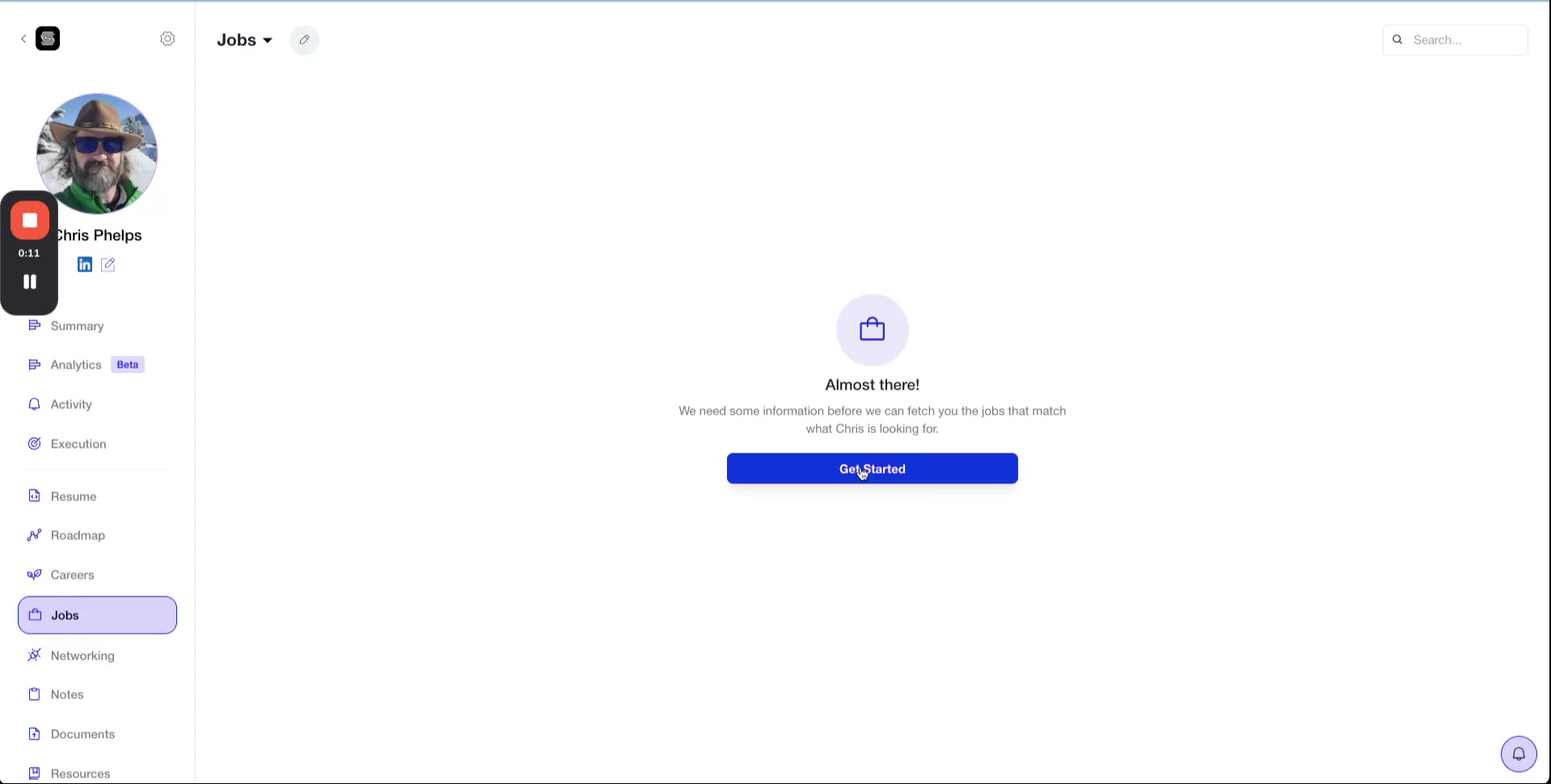
Step 1: Activate the Jobs Component
Navigate to your client's profile and locate the Jobs section. Click the Get Started button to begin the setup wizard.
Step 2: Select Position Matching Type
You'll be presented with two matching options:
Exact – Strict title matching (e.g., only "Senior Software Engineer" positions)
Relevant – Broader matching that includes variations and related titles (recommended)
For most clients, select Relevant to cast a wider net and include variations of their target position.
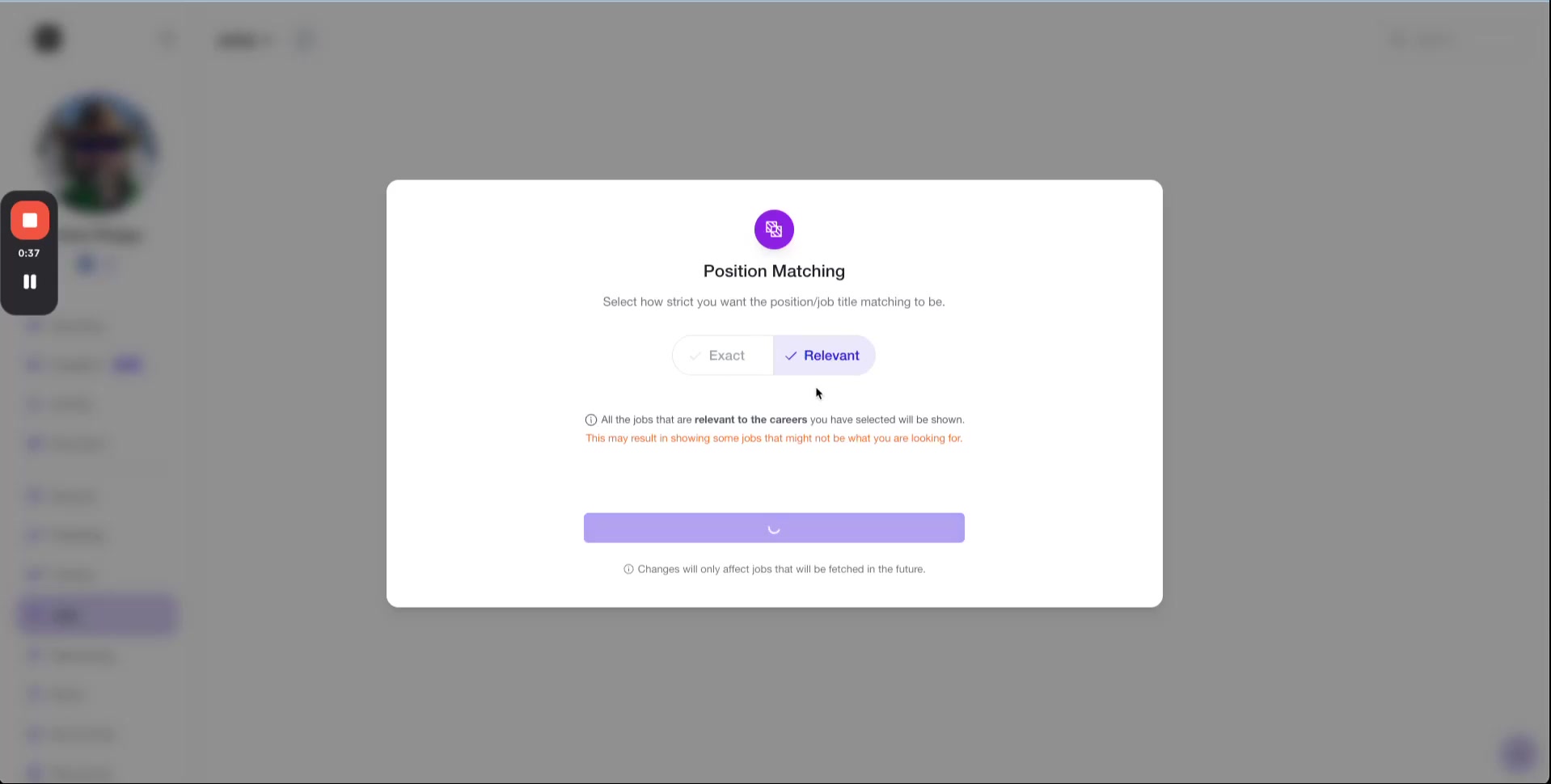
Click Continue to proceed.
Step 3: Filter by Industries
Select or deselect industries to refine the job search. Unchecking irrelevant industries (like real estate, nonprofit, or government if they don't match your client's goals) helps reduce noise in the results.
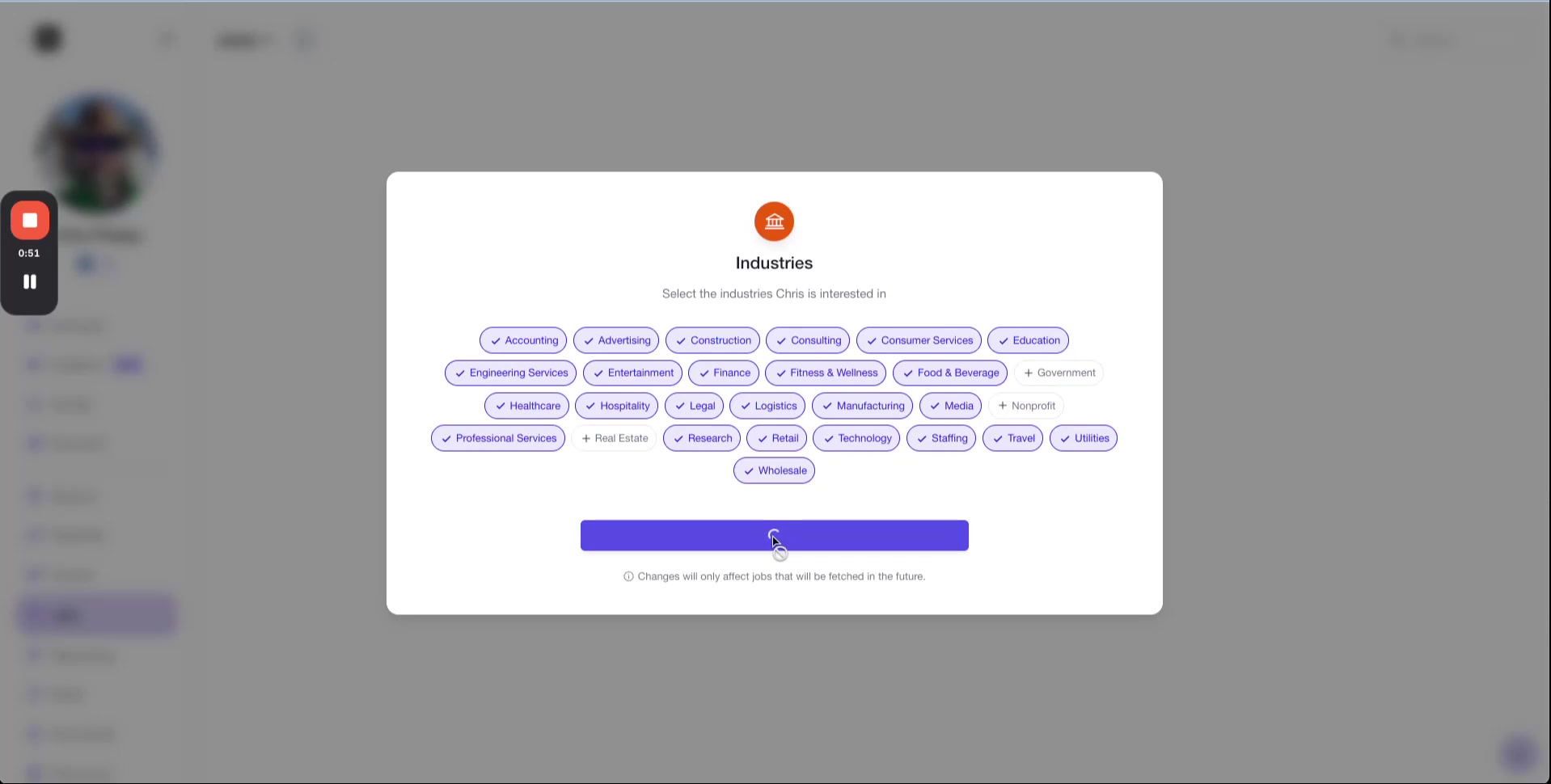
We generally recommend that you select all industries in the beginning to receive an acceptable volume of jobs. Later, you can always go back to this screen and remove certain industries if you like.
Click Continue once you've selected the appropriate industries.
Step 4: Add Custom Tags (Optional)
If your client has niche interests or specializations, you can add custom tags to further filter jobs. For example, if they're interested in crypto-related finance roles, add "crypto" as a tag.
This feature may not be enabled for all accounts. If you don't see it, simply proceed to the next step.
Step 5: Select and Refine Skills
Review the pre-selected skills based on your client's profile. You can:
Uncheck skills that don't apply
Add additional skills from the suggested list
Enter custom skills in the input field
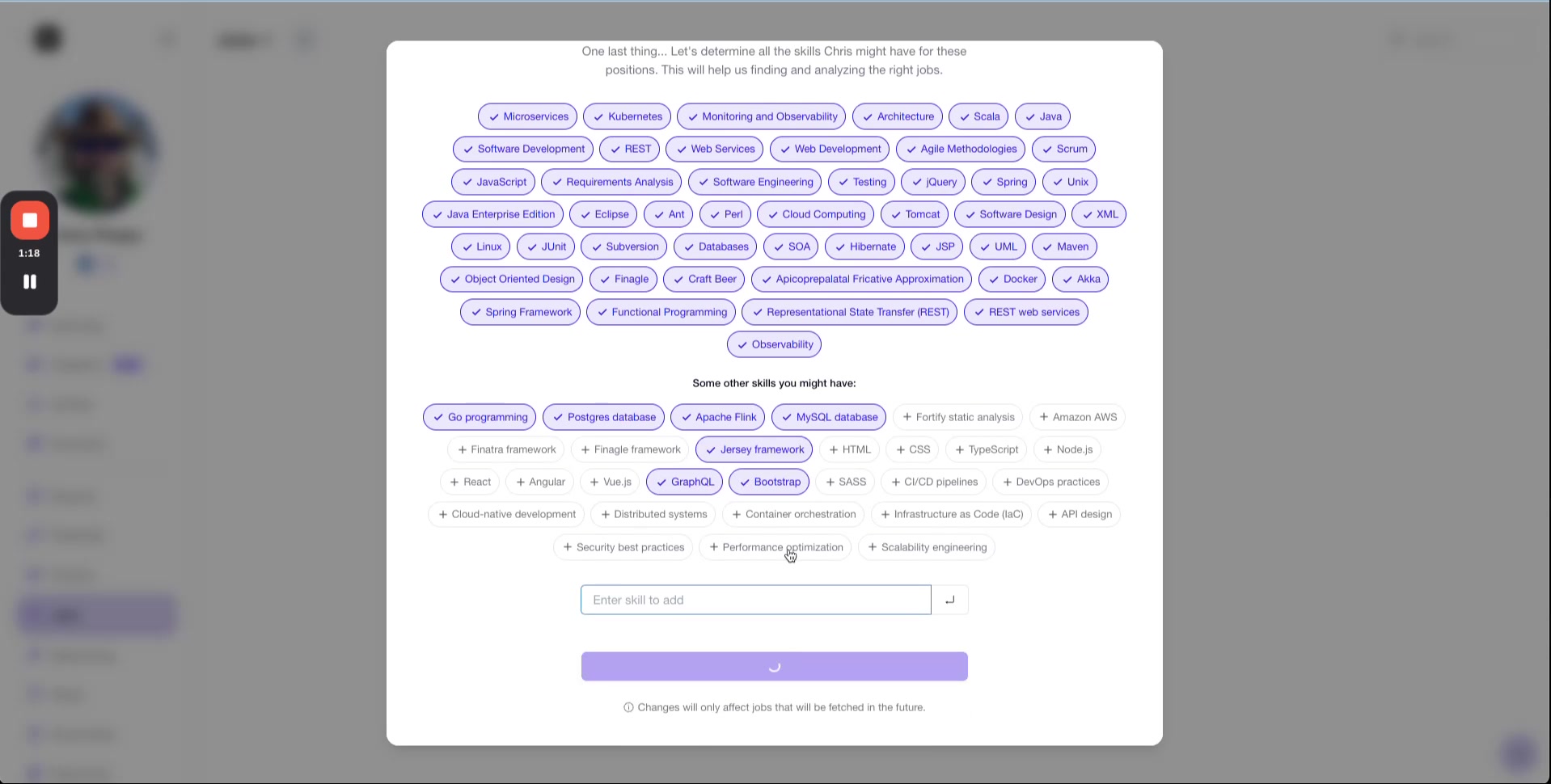
Once you've finalized the skills, click Show Me Jobs. Shapeshifter will now analyze jobs based on salary, location, job type, industries, and skills you've configured.
After setup is complete, you can add external jobs from LinkedIn or Indeed, and use dashboard filters to refine your results. Check out our related guides for more details.
Video Walkthrough
For a complete visual demonstration of the setup process, watch the video below: